
First steps
Inari is installed. This page takes you from "it launches" to "game, chat and music sit on their own faders, and OBS records them as separate tracks".
First launch
Start Inari from your application menu, or run inari in a terminal. The window comes up on its own — unless you enabled autostart with Start minimized, in which case it boots straight to the tray icon.
On the very first run you get a short tour: three cards (Your sound, on a board · Sort your apps · Microphone), then one decision:
| Choice | What you get |
|---|---|
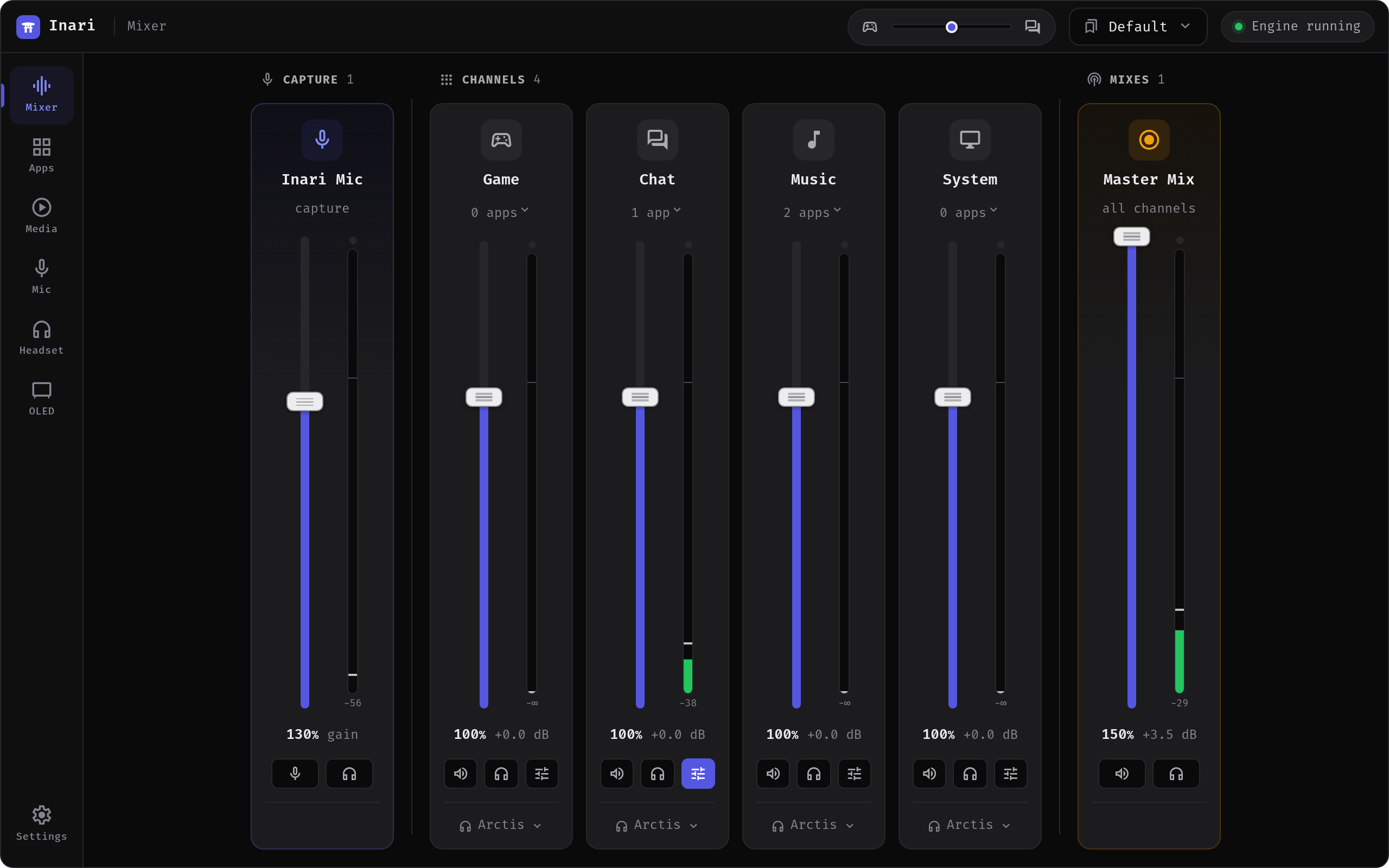
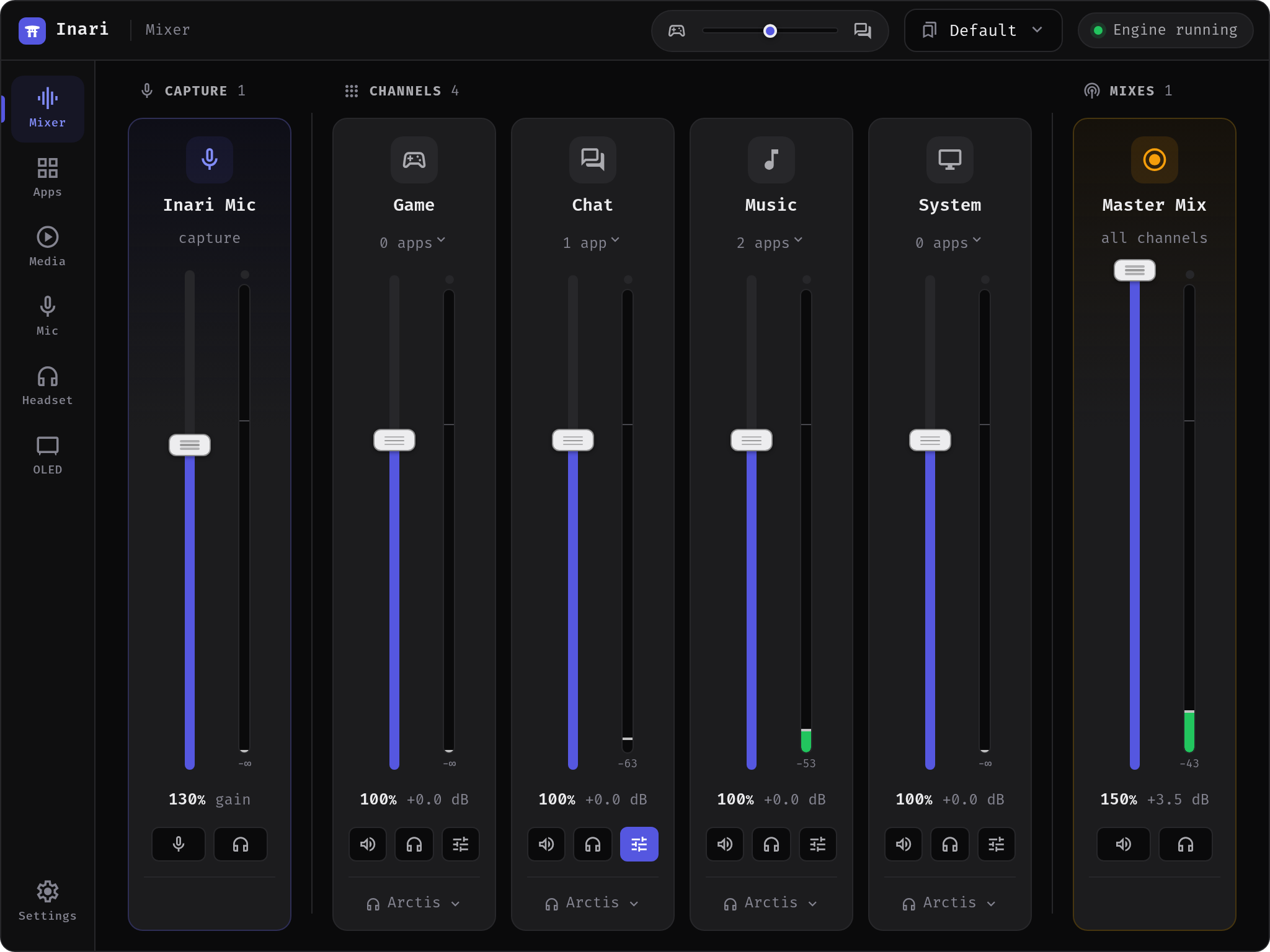
| Set up a board for me | Four channels — Game, Chat, Music and System |
| I'll build my own | A single channel called Main; add the rest as you go |
Skipping the tour does the same thing as "Set up a board for me". Either way nothing is locked in — you can add, rename, reorder and delete channels at any time from the Mixer tab (up to 10). You can replay the tour later from Settings → Tutorial.
Each channel becomes a real PipeWire sink (sink_game, sink_chat, …), and Inari also creates one always-on Master Mix that carries every channel. That mix is what recorders capture.
Put your apps on channels
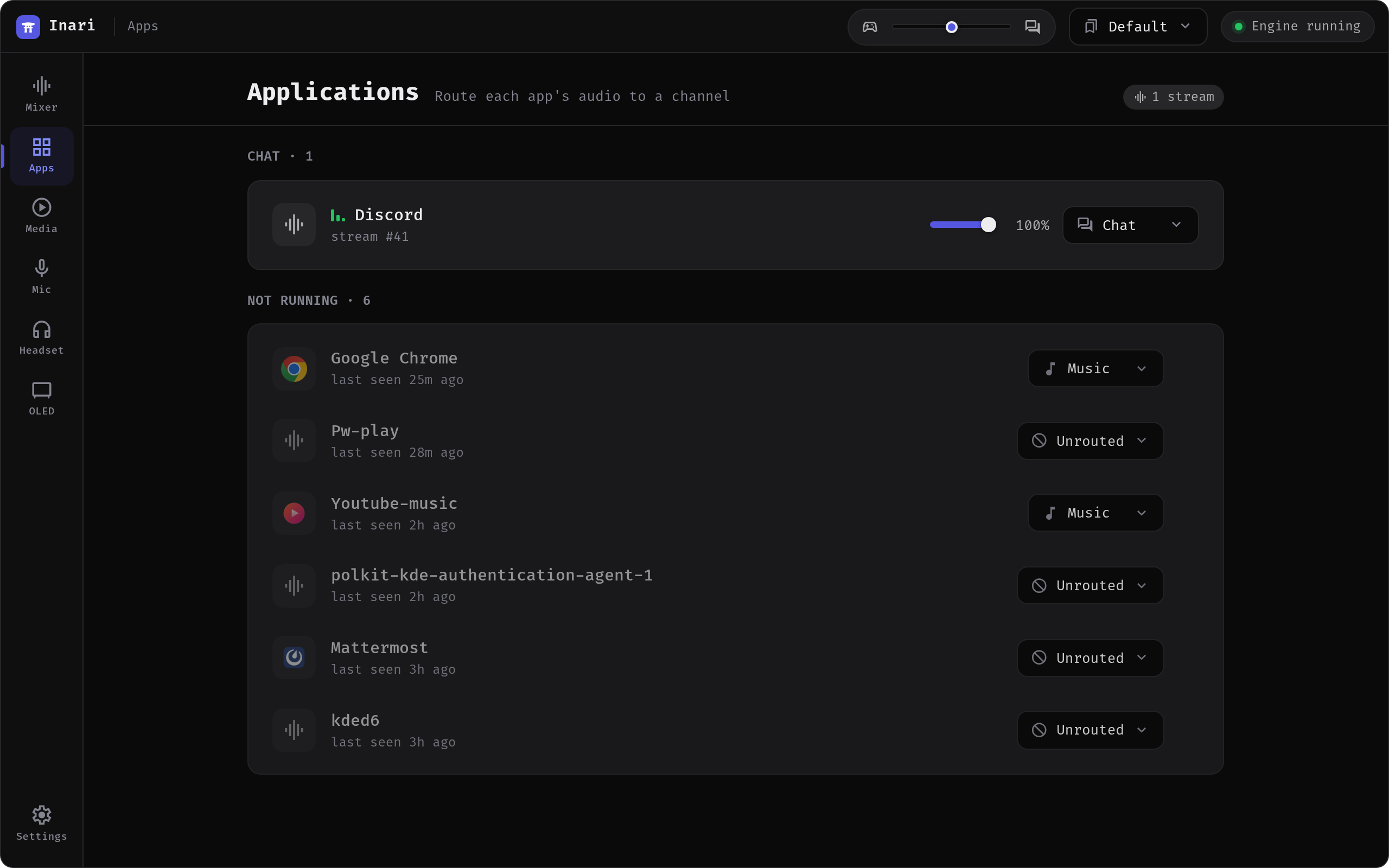
Open the Apps tab. Anything currently playing audio shows up by itself, grouped by the channel it's on, with everything else under Unrouted. The list follows the PipeWire graph, so a new stream appears as it starts rather than on the next tick.
- Find the app's row.
- Open the channel dropdown on the right.
- Pick a channel.
The stream moves immediately, and the choice is remembered by app identity — next time that app makes a sound it lands on the same channel without you doing anything. Apps you have routed before but that aren't running appear under Not running, so you can pre-route something before you launch it.
Two things worth knowing:
- Assignments are enforced while the Inari window is on screen. Inari stops watching the graph while it sits in the tray, so an app you start during a game may play on your default output until you bring the window up once. It moves as soon as you do — no restart needed. The saved rules are also written to a WirePlumber fragment, but WirePlumber only reads those at login.
- Apps that pick an output device themselves don't follow assignments. Discord, OBS and anything else with its own device menu need the Inari channel selected inside that app — that's what the two recipes below do.
Record with OBS
Inari's mixes show up as capture devices, so OBS takes them as audio inputs, not as desktop audio.
Don't use "Desktop Audio"
Desktop Audio captures your default output — that is everything, already mixed together. The whole point of the channels is that game, chat and music stay apart; capturing the desktop throws that split away again.
One mix, one source:
- In OBS, Sources → + → Audio Input Capture.
- Give it a name (e.g.
Game). - Under Device, pick the Inari mix you want —
Master Mixto start with.
Separate tracks per mix:
- On the Mixer tab, add a mix per group you want to record (the + on the Mixes header — up to four next to the Master Mix). Tick the channels it carries, or flip it to exclude mode so new channels join automatically ("everything except Music").
- In OBS, add one Audio Input Capture source per mix.
- Settings → Output, switch Output Mode to Advanced, and enable the audio tracks you want under Recording.
- In the Audio Mixer panel, ⚙ → Advanced Audio Properties, and tick the track number for each source.
Rename a mix by double-clicking its label — recorders see that name. Each mix also has its own volume and mute, which only affect what recorders hear.
Talk on Discord
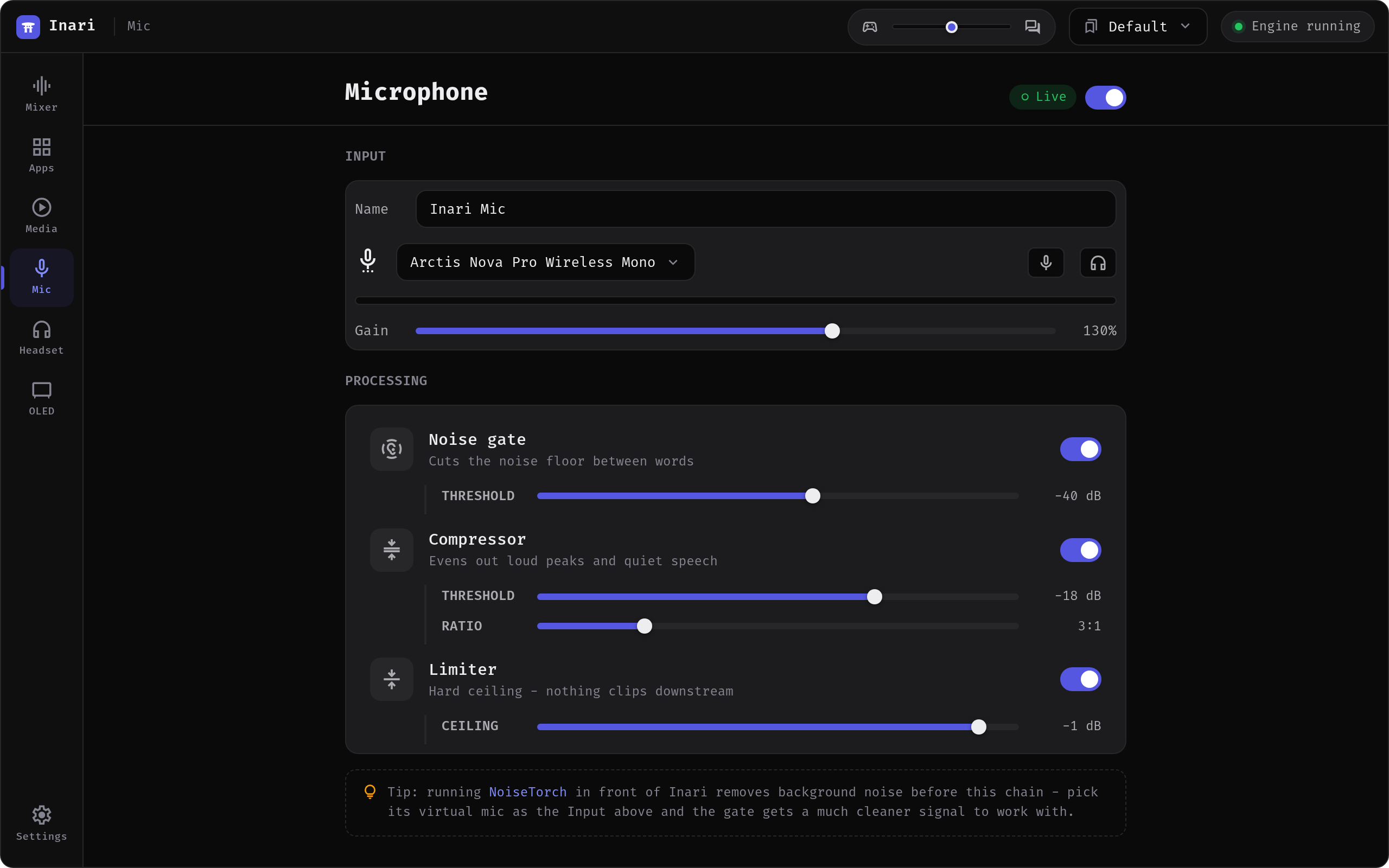
The processed microphone is off by default. Turn it on first:
- Mic tab → enable the chain, and pick your hardware microphone as the input.
- The result is published as a virtual microphone called Inari Mic (node
sink_mic), with a noise gate, compressor and limiter in front of it.
Then in Discord, User Settings → Voice & Video:
- Input Device →
Inari Mic - Output Device → your chat channel (
Chat, if you took the default board)
Turn Noise Suppression and Automatic Gain Control off while you're there. Inari's gate and compressor already do that job, and stacking two of each makes the signal pump and swallow word beginnings. Echo Cancellation is a different thing that Inari does not do — keep it on if you listen on speakers.
Discord's output now goes to a channel with its own fader, so you can duck chat under the game without touching the game's volume.
Shape a channel
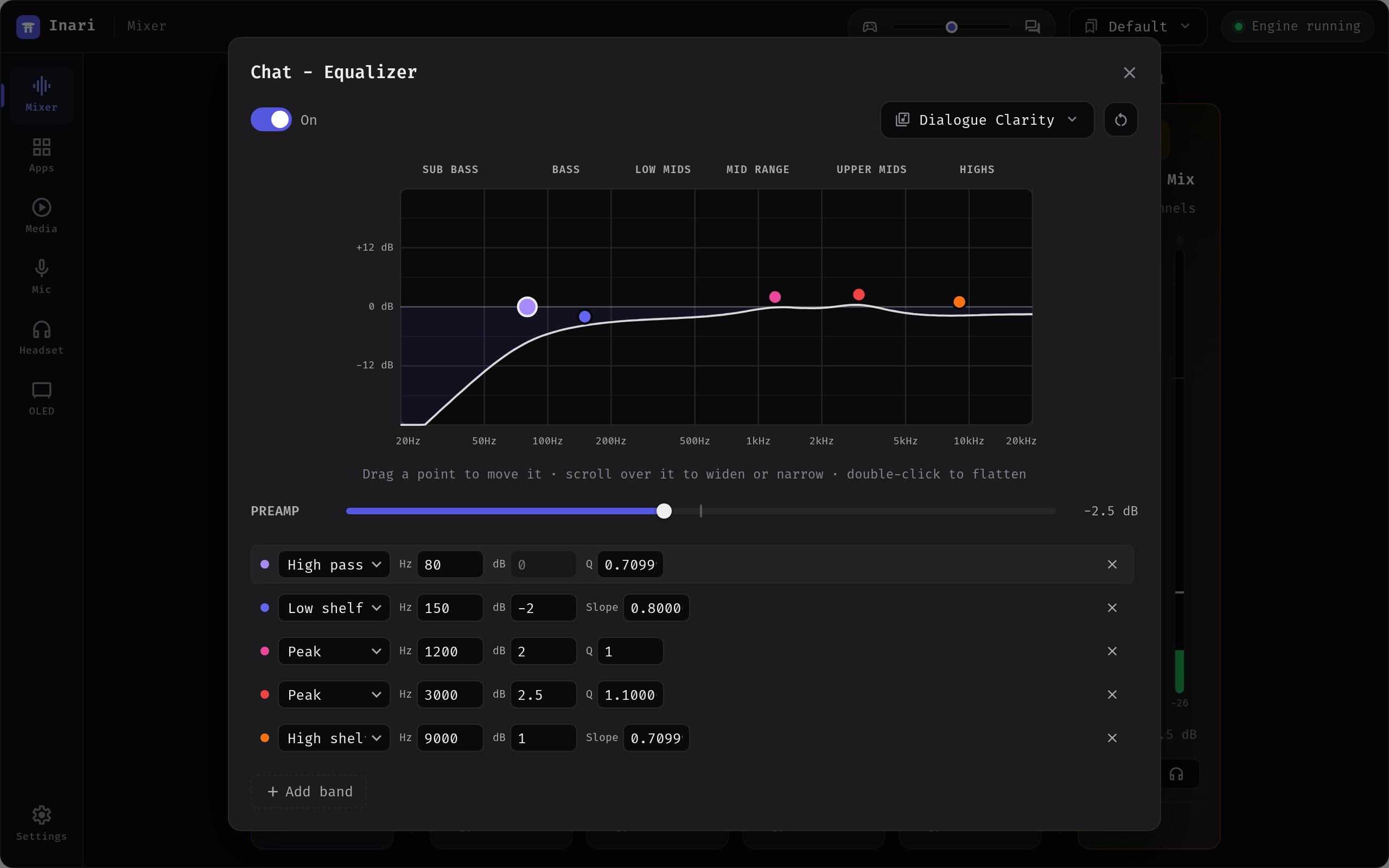
Every channel has its own parametric EQ (up to 10 bands) with bundled presets and AutoEq import. Open it from the Equalizer button on the channel strip.
Optional: put the mixer on a tablet
If the machine you play on isn't the one within arm's reach, turn on Settings → Remote and scan the QR code with a tablet or phone on the same network. You get the same faders, the headset controls and media transport in a browser.
It is off until you switch it on, and listens on loopback until you choose an address — read Remote control before you expose it, especially the part about what a paired device is and isn't allowed to do.
Check that it's actually working
Three quick tests, in order of how much they tell you:
The meters move. Play something and watch the VU meter on the channel strip. Movement means audio really is flowing through Inari's node. If nothing moves, see Why don't my VU meters move?.
The sinks exist. In a terminal:
pactl list sinks short | grep sink_You should see one line per channel — sink_game, sink_chat, and so on. The mixes and the microphone are sources, not sinks:
pactl list sources short | grep sink_The engine is native. Settings → About → Audio engine should read "Native PipeWire" with a native tag. A fallback tag means the native engine couldn't start, and metering, EQ, mixes and the mic chain are unavailable — see the FAQ.
Next
- Audio mixer — channels, mixes, EQ, profiles
- SteelSeries headset and the OLED
- Remote control — the same mixer on a tablet
- Media — see and drive what's playing
- Hotkeys and the command line — mute or switch profiles without touching the window
- Configuration & files — every file Inari writes
- FAQ and Troubleshooting