
Mixer — channels and apps
Inari puts a virtual channel between your apps and your speakers. Each app plays into a channel; each channel has its own volume, mute, meter, equalizer and output device. What you record is a separate copy — see Mixes.
 apps ─► channels ─► your ears
              └────► a Mix ─► OBS / recorder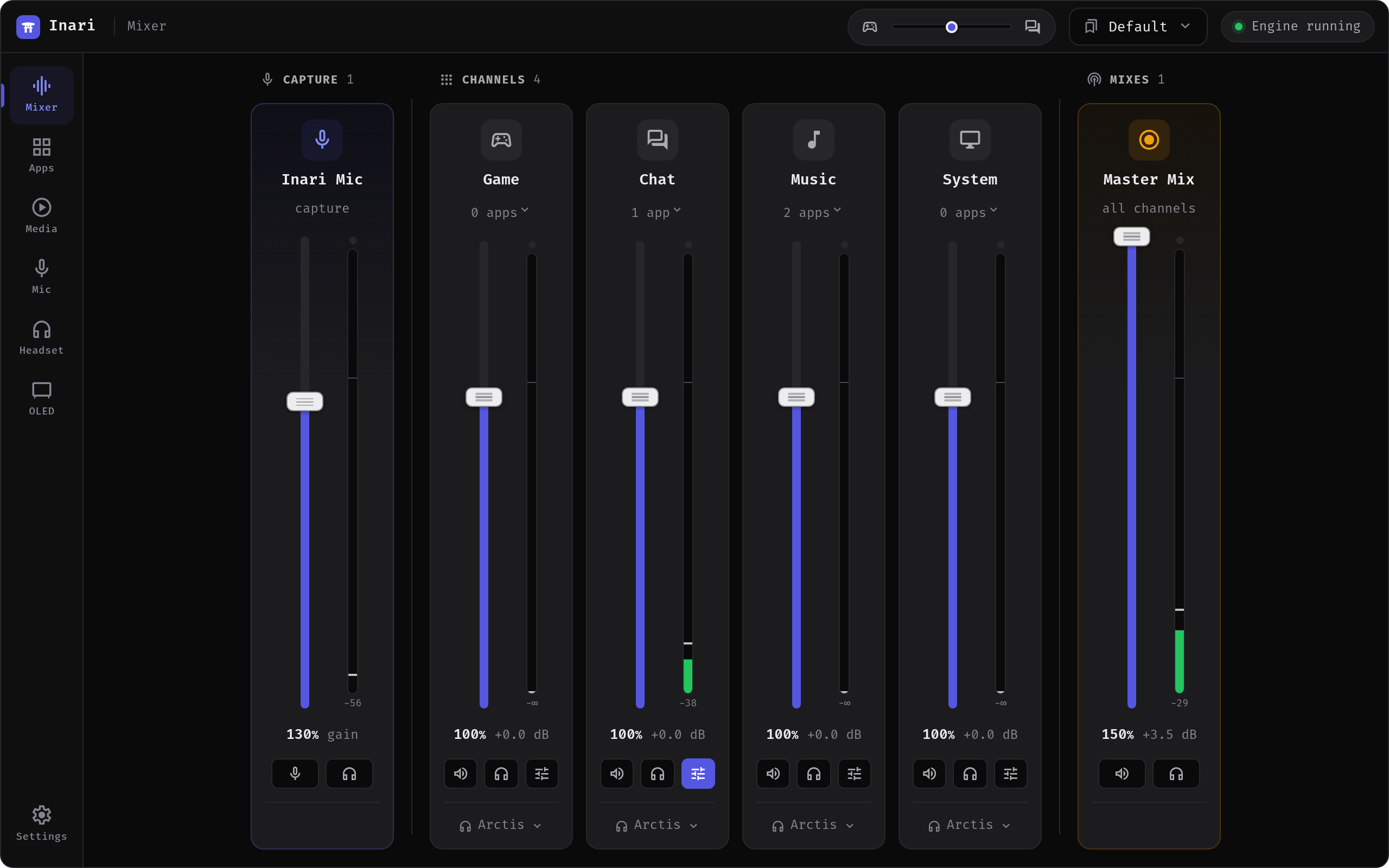
Channels
A fresh install starts with four channels — Game, Chat, Music and System. They are ordinary user channels: rename them, delete them, add your own.
- Add — the
+in the Channels group header. Name (1–24 characters) plus an icon. You can have up to 10 channels; at least one must remain. - Rename — double-click the strip name. The PipeWire node name stays the same, so app assignments, output choices and profiles keep working.
- Reorder — drag a strip by its grip handle, top-left of the strip. Cosmetic only; no audio plumbing changes.
- Icon — click the strip icon to pick another one.
- Delete — the
×on the strip. Apps routed there fall back to the system default output and the channel's saved routing and EQ are dropped.
Each strip carries a fader (0–150 %, with the dB equivalent under it), a mute button and a live VU meter. The tune button opens the channel's equalizer.
Volume and mute survive a restart
Inari reads each channel's volume and mute off the sink instead of setting them. WirePlumber remembers a level per PipeWire node name and restores it the moment the sink reappears, so a channel you left at 40 % — or muted — comes back that way, and the strip shows it.
Since v1.0.13 this is a continuous reading rather than a single one at startup: change a channel's volume in pavucontrol or with wpctl and the strip follows. Before that it was read once during initialisation and never again, so anything that moved a level afterwards left the fader showing a number the sink had stopped using — including the case where the reading simply had not arrived yet when Inari looked, which left the channel on the 100 % placeholder for the rest of the session.
One deliberate exception: a newly created channel is put back to 100 % if WirePlumber restores an old level for its name. Channel names are derived from the label, so recreating a channel you once deleted inherits whatever that name was last set to — and a new channel that is silent from birth is a puzzle, not a memory.
Where the backend can't report a channel's state (the pactl fallback, or a node whose properties haven't arrived yet) the strip falls back to 100 %, unmuted. That is a documented fallback, not a reading.
Before v1.0.10
Inari used to write 100 %, unmuted to every sink at startup. That write lost the race against the session's own restore, so a channel could sit at 0 % and be silent while its fader read 100 %, with nothing on screen to say so. Moving the fader was the only way out. If you see that, update.
Output device per channel
The footer of every strip picks where that channel plays: a specific device, or System default. While a channel follows the default, the footer shows the device it currently resolves to, so you can see where the audio actually lands.
Failover
Devices come and go — a USB headset gets unplugged, a Bluetooth speaker disconnects. Every channel has Fail over to another device (in the output menu), and it is on by default:
- On — if the chosen device (or the system default) is gone, the channel moves to the default, and then to the best remaining sink. Audio keeps playing.
- Off — the channel plays only on the device you picked, or on the exact system default. When that device disappears the channel goes silent instead of jumping to your laptop speakers.
The setting is per channel and is saved across restarts.
Monitor
The headphones button on a channel strip plays that channel on your default output in addition to wherever it is routed. Useful when a channel is pinned to a device you are not listening to — a stream feed, a second interface — and you want to hear it anyway.
Monitoring works the same way on a mix strip and on the mic strip. It is session-scoped: it is never saved and is off again after a restart.
Apps
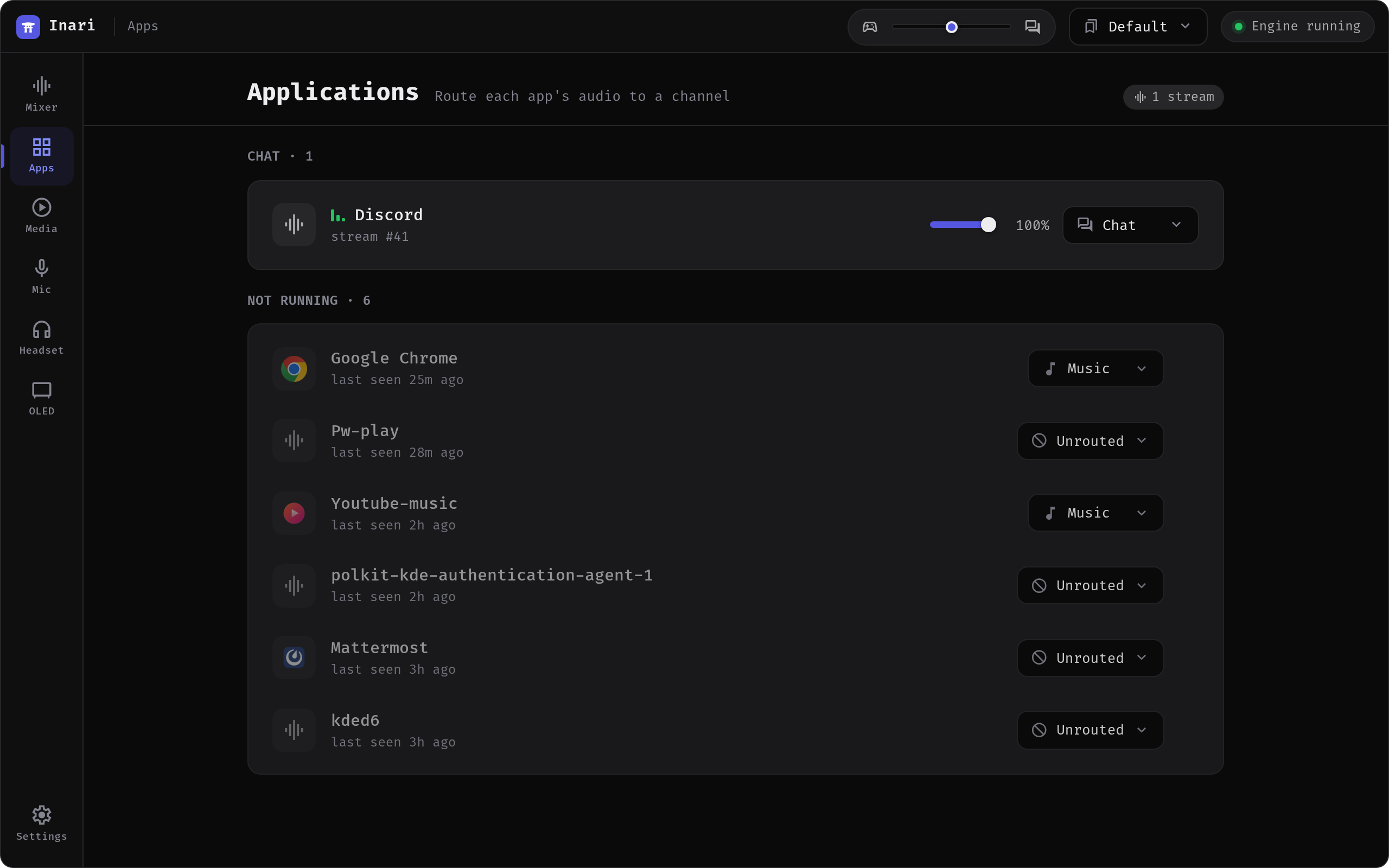
Anything that plays audio shows up on the Applications screen by itself. Assign it to a channel once and Inari remembers that choice by app identity, not by process — the app lands on the right channel every time it starts, including after a reboot. The rule is also mirrored into a WirePlumber fragment.
On the native backend the list follows the PipeWire graph: the backend pushes a change event when a stream or device appears, disappears or is renamed, and the screen refetches on that, with a slow timer behind it so a dropped event can't strand the view. The pactl fallback has nothing to listen to and keeps polling every two seconds. Either way the refresh stops while Inari sits in the tray and catches up when you bring the window back.
Apps that are not running are listed under Not running. You can set their channel there too (pre-routing): the assignment applies the moment the app next plays audio.
Per app you can:
- Set the volume — a slider on the row, independent of the channel fader.
- Rename — the pencil icon. Inari identifies apps from their PipeWire properties, which sometimes yields a runtime name (
Electron,WINE) instead of the program you know; a rename fixes the display name for good. Typing the discovered name back clears the override. - Ignore — hides the app from Inari and takes it out of auto-routing. Ignored apps are collapsed at the bottom of the list and can be un-ignored from there. Good for a system beep or a browser tab you never want managed.
- Forget — erases the app from history entirely, along with its assignment and its renamed label.
Apps you never touched are dropped from the history after a week. Anything that carries intent — an assignment, a rename or the ignore flag — is kept indefinitely.
The n apps button in a strip header opens the same membership list from the mixer side: check an app to move it onto that channel, uncheck it to send it back to the default output.
More
- Mixes — recordable sources for OBS, including "everything except music".
- Equalizer — per-channel parametric EQ, presets and AutoEq import.
- Microphone — the gate/compressor/limiter chain and the virtual mic.
- Profiles — save whole layouts and switch automatically when a device connects.
- Settings — theme, device naming, defaults, autostart.